
Implementing Automatic Translation in a Custom Odoo Module

Multilingual support is a fundamental requirement for any business application serving users across different regions. Odoo addresses this with a built-in internationalization (i18n) mechanism that allows the entire interface to be translated without writing any custom translation logic.


Module Structure

Every Odoo module stores its translation files inside an i18n folder, using the .po (Portable Object) format named after ISO language codes.

reward_addons/
├── models/
│ └── reward_program.py
├── views/
│ └── reward_program_views.xml
├── i18n/
│ └── id.po
├── __manifest__.py
└── __init__.py

When a user selects a language in their account settings, Odoo automatically reads the corresponding .po file and renders the interface in that language.


What Odoo Can Translate

Odoo scans the module source code during installation or update and collects all eligible text from these sources: field labels, help text, selection values, XML view text, validation error messages, and SQL constraint messages.

1. Field Labels

Defined via the string attribute on field declarations:

reward_type = fields.Selection(
    selection=[('points', 'Reward Points'), ('cashback', 'Cashback')],
    string='Reward Type',
)

Odoo detects "Reward Type" and generates this entry in the .po file:

#: model:ir.model.fields,field_description:reward_addons.field_reward_program__reward_type
msgid "Reward Type"
msgstr "Tipe Reward"

2. Selection Values

Each option label inside a selection field is also detected and exported separately:

msgid "Reward Points"
msgstr "Poin Reward"

msgid "Cashback"
msgstr "Cashback"

Once translated, users will see the localized label in the dropdown automatically and no changes needed in the application logic.

3. Help Text

Defined via the help attribute and displayed as a tooltip on hover:

min_transaction_amount = fields.Float(
    string='Minimum Transaction Amount',
    help='Minimum purchase amount to earn reward points.\n0 = No minimum.',
)

Odoo picks this up and generates:

#: model:ir.model.fields,help:reward_addons.field_reward_program__min_transaction_amount
msgid "Minimum purchase amount to earn reward points.\n0 = No minimum."
msgstr "Jumlah pembelian minimum untuk mendapatkan poin reward.\n0 = Tidak ada minimum."

The \n newline character must be preserved in the translated string.

4. Validation Error Messages

Unlike field attributes, error messages written directly in Python code are not detected automatically. The developer must explicitly wrap them with the _() function:

from odoo import _, api, models
from odoo.exceptions import ValidationError

class RewardProgram(models.Model):
    _name = 'reward.program'

    @api.constrains('min_transaction_amount')
    def _check_min_transaction_amount(self):
        for record in self:
            if record.min_transaction_amount < 0:
                raise ValidationError(
                    _("Minimum transaction amount cannot be negative for program '%s'.")
                    % record.name
                )

Without _(), Odoo will not detect the string during scanning. The exported entry will include the #, python-format flag because of the %s placeholder. This placeholder must be kept intact in the translation:

#, python-format
msgid "Minimum transaction amount cannot be negative for program '%s'."
msgstr "Jumlah transaksi minimum tidak boleh negatif untuk program '%s'."

Exporting and Applying Translations

Once development is complete, the workflow is straightforward.

  1. Update the module by navigating to Apps, search for your module (reward_addons), click the three-dot menu ( ⋮ ) on the module card, and select Upgrade.
  2. In developer mode, export the translation file by going to Settings → Translations → Export Translation, then select the language and module to download the .po file.
  3. Fill in the translations. Save the file to reward_addons/i18n/id.po and fill in the empty msgstr fields.
  4. Import the translations back into Odoo. Go to Settings → Translations → Import Translation, upload your .po file, and make sure Overwrite Existing Terms is checked. Then upgrade the module from the app list.

Conclusion

Odoo automatically detects and translates most user-facing text, including field labels, help texts, selection values, and SQL constraint messages. However, validation error messages written in Python must be wrapped with the _() function to ensure they are included in the translation export process.
Book a Free Consultation

Haven’t found the right solution yet?
Tell us about your needs, and let’s discuss the best solution together.

Project description.

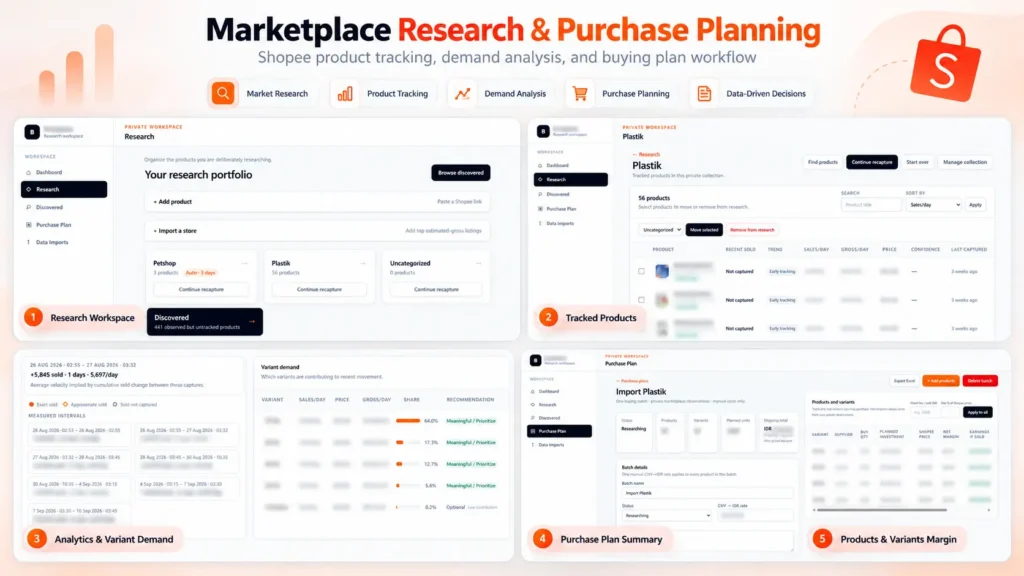
Built a private marketplace research and purchase planning platform for Shopee. The system tracks product performance over time, estimates sales velocity and gross revenue, analyzes demand across product variants, and turns the research into actionable purchasing plans. It also calculates supplier costs, shipping, platform fees, margins, planned investment, and estimated earnings to support data-driven sourcing decisions.

Skills and deliverables

Full-Stack Development, Web Application Development, Data Analysis, Business Process Automation, Business Intelligence

Shopee Marketplace Research & Purchase Planning Dashboard

We built this application to solve a common problem in marketplace sourcing: finding products is easy, but deciding what is actually worth buying, which variant to prioritize, and how much inventory to purchase requires much more analysis. Instead of relying on a single product snapshot, the system organizes products into research collections and tracks their marketplace performance over time.

Product research & tracking

Products can be added individually or collected from marketplace stores and organized into dedicated research collections. The system keeps historical observations so users can compare changes between captures instead of relying only on the latest marketplace data. This makes it possible to estimate metrics such as: – Sales velocity – Estimated daily gross revenue – Price changes – Product movement over time – Variant-level demand

Variant demand analysis

One of the most important parts of the system is identifying which variants are actually driving sales. Instead of treating a product as a single item, the application analyzes sales movement at variant level and shows each variant’s contribution to recent demand. This helps identify which sizes, models, or variations should be prioritized when purchasing inventory.

Purchase planning

Research data can then be converted directly into a purchasing plan. For every product and variant, the user can enter supplier pricing, shipping costs, purchase quantities, exchange rates, and other operational costs. The system automatically calculates: – Planned inventory investment – Shipping cost – Marketplace/platform fees – Net margin per unit – Net margin percentage – Estimated earnings – Total batch investment This allows purchasing decisions to be evaluated before committing capital.

Why We built it

The goal was to replace a workflow that would normally require multiple spreadsheets, manual marketplace checks, and repeated calculations. The resulting workflow became: Discover products → Track performance → Analyze demand → Select variants → Plan purchasing → Estimate margins Everything is kept in one application, making the research and sourcing process easier to review, repeat, and scale.

Result

The platform turns raw marketplace observations into actionable purchasing information. Instead of choosing products based only on intuition or current sales numbers, users can evaluate sales movement, variant demand, sourcing cost, expected margin, and required investment before making a purchasing decision. Built as an end-to-end internal tool, from data collection and analysis to the final purchasing workflow.

Project description.

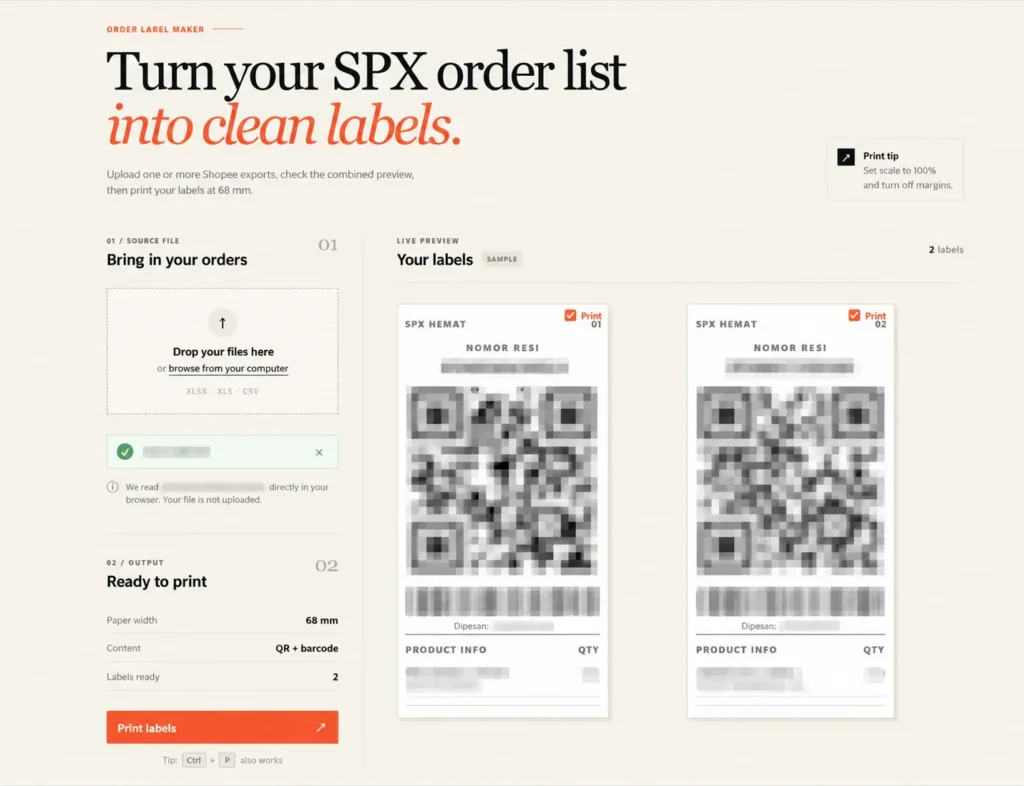
Built a browser-based tool that converts Shopee/SPX order exports into clean, print-ready shipping labels. It supports multiple Excel/CSV files, combines orders into one preview, and automatically generates QR codes, barcodes, tracking numbers, and product information for 68 mm thermal printers. All order data is processed locally in the browser for better privacy, eliminating repetitive manual label formatting.

Skills and deliverables

Laravel, Business Automation, CSV, Microsoft Excel

Shopee SPX Order Label Maker for Thermal Printing

This tool was built to simplify the shipping label preparation process for Shopee SPX orders. The existing workflow required order data to be exported from Shopee and manually formatted before it could be printed on a thermal printer. This became repetitive and time-consuming, especially when processing multiple orders at once.

We built a browser-based label generator that reads Shopee Excel/CSV exports and automatically converts the order data into clean, print-ready SPX labels. The tool automatically handles: – Tracking numbers – QR codes – Barcodes – Product names and variants – Order quantities – Multiple order files at once – 68 mm thermal printer formatting Users can review all generated labels before printing, without having to manually copy or reorganize the order information.

The order files are processed directly inside the browser instead of being uploaded to a server. This keeps customer and shipment data private while also making the tool fast and simple to use.