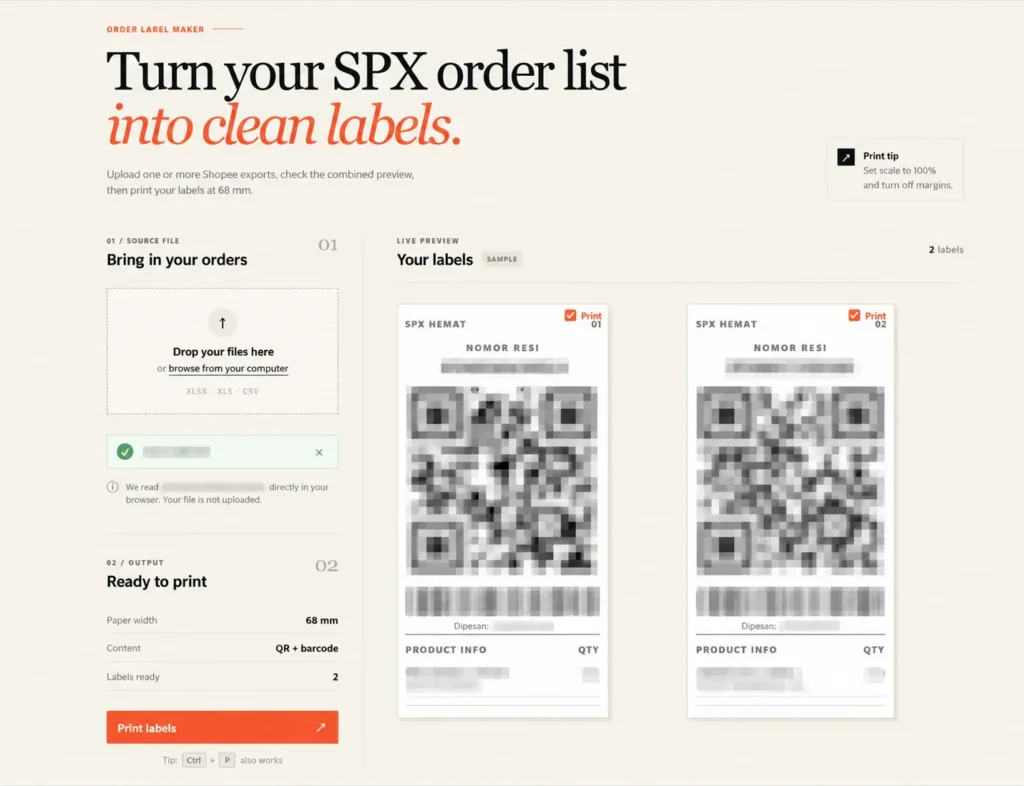
If you’ve ever needed a barcode on an invoice, a product label, or a shipping label in Odoo, you don’t need a third-party library, a paid module, or a JavaScript barcode renderer. Odoo ships with a built-in barcode image generator that you can drop straight into any QWeb report. This post walks through how it works, how to use it, and a few gotchas that can trip you up.
Where the Barcode Actually Comes From
Odoo’s report module exposes a controller at:
/report/barcode/Under the hood, this endpoint uses the ReportLab library to render a barcode image on the fly and return it as a PNG. Because it’s just an HTTP endpoint that returns an image, you can use it anywhere you’d use a normal <img> tag such as QWeb reports, website pages, even a plain browser URL for testing.
Basic Usage
The controller takes the barcode type and value as positional path segments, with everything else as optional query parameters:
/report/barcode/<barcode_type>/<value>?width=...&height=...| Part | Required | Description |
|---|---|---|
barcode_type (path segment) | Yes | Barcode symbology e.g. Code128, EAN13, QR, Code39 |
value (path segment) | Yes | The actual data to encode |
width (query param) | No | Image width in pixels (default 600) |
height (query param) | No | Image height in pixels (default 100) |
Try it directly in your browser first, before touching any XML:
http://localhost:8069/report/barcode/Code128/1234567890?width=450&height=60Using It Inside a QWeb Report
Inside a report template, build the path with t-att-src since you’re constructing a Python string, not filling in a fixed template:
<img
    t-if="o.biteship_reference_id"
    class="barcode"
    t-att-src="'/report/barcode/Code128/%s?width=350&height=45' % o.biteship_reference_id"
    alt="Barcode"/>
A few details matter here:
- Guard with
t-if. If the field is empty, don’t even attempt to render the image or you’ll get a broken image icon instead of a clean blank space. width/heightas query params, not path segments. If you want to control the rendered size, append them as a query string on the constructed URL:'/report/barcode/Code128/%s?width=450&height=60' % o.carrier_tracking_ref. Plain HTMLwidth/heightattributes on the<img>tag also work fine for display sizing and are simpler when you don’t need the server to render at a specific resolution.- URL-encode the value if needed. If your barcode data can contain special characters (
&,#,/, spaces), pass it throughwerkzeug.urls.url_quote()first since the value is now a path segment rather than a query parameter, an unescaped/in particular will break the routing:
<img t-if="o.carrier_tracking_ref"
     class="barcode"
     t-att-src="'/report/barcode/Code128/%s' % werkzeug.urls.url_quote(o.carrier_tracking_ref)"
     alt="Barcode"/>
Choosing Barcode Type
Odoo supports most common symbologies through ReportLab, including:
- Code128: general-purpose, alphanumeric, most common choice for tracking numbers and reference IDs
- EAN13 / EAN8: retail product barcodes
- Code39: widely supported by older scanners
- QR: for anything that needs more data density (URLs, structured data)
For shipping labels and tracking numbers specifically, Code128 is almost always the right pick as it handles letters, numbers, and dashes cleanly, which is exactly the format most courier waybill numbers use.
Summary
The barcode controller is one of those small, easy-to-miss pieces of Odoo that solves a problem people often reach for external tools to fix. Once you’ve confirmed the endpoint works on its own, wiring it into a QWeb report is just a matter of a correctly-escaped, correctly-encoded <img> tag with no extra Python dependencies in your own module required.